
We’ve all been there, right? You need to get something done on your phone, but you’re out of Wi-Fi range or don’t want to use your data. It can be a real pain. Luckily, there are ways to get things done without being connected. We’ve been looking into some of the best offline assistant for android options out there. These tools can help you manage tasks, control your phone, and automate actions, all without needing an internet connection. Let’s check out what we found.
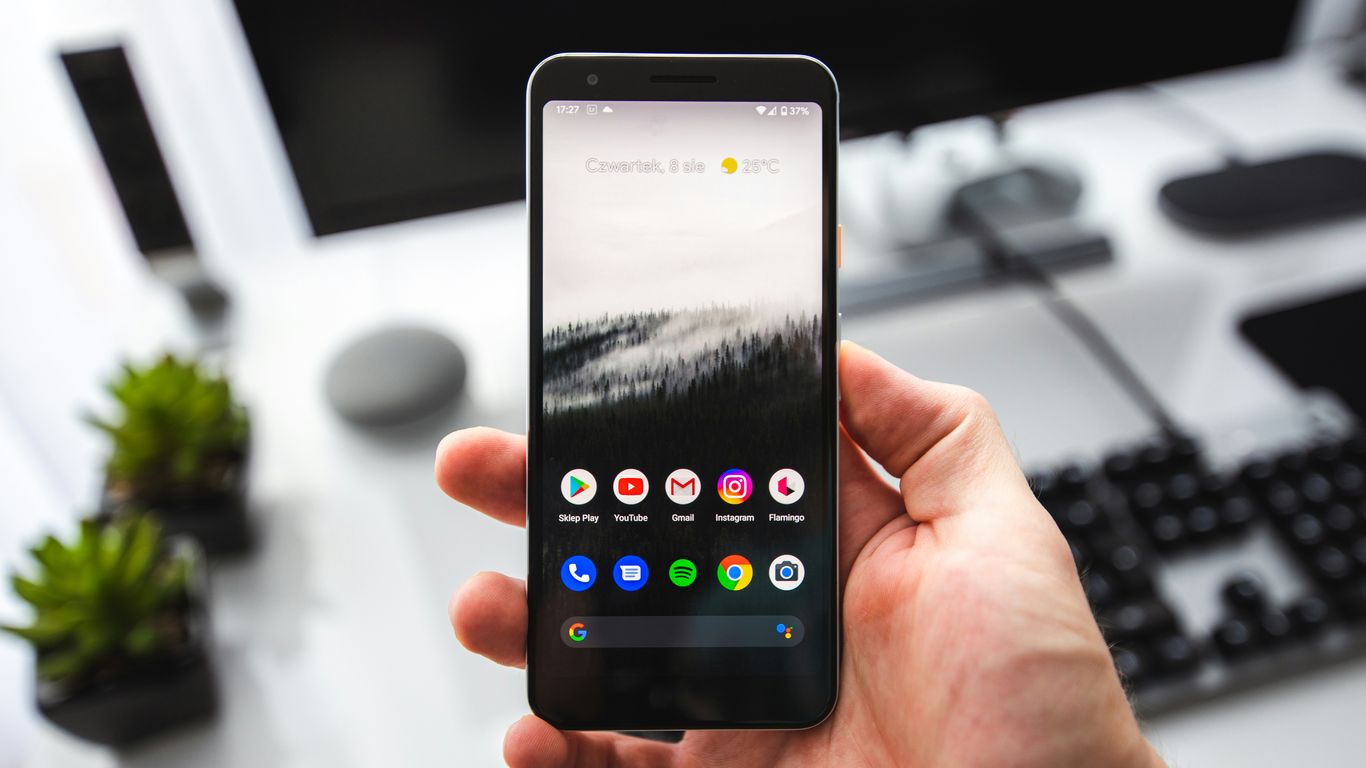
We all know Google Assistant, right? It’s that voice helper that’s probably already on your phone. For a long time, we thought you absolutely needed internet for it to do anything useful. And yeah, for a lot of the fancy stuff, like asking random trivia questions or getting weather updates, that’s still true. It really needs that connection to pull that info from the web Google Assistant features.
But here’s the cool part we might have missed: Google Assistant actually has some offline tricks up its sleeve. It can handle basic commands even when you’re totally offline. Think about it – you’re in a subway tunnel, or maybe out camping with spotty service. You can still tell it to open an app, like your music player or your notes. You can also flip settings like turning on airplane mode or adjusting the volume. It’s not going to plan your whole day, but for quick, on-device actions, it’s surprisingly capable. It’s a good way to get things done when you can’t rely on a signal offline mode.
Here’s what we found it can do offline:
It’s not a complete replacement for the online version, but for those moments when you’re disconnected, it’s a handy little helper to have.
We’ve all been there – trying to do something on our phone while our hands are full, or maybe just wanting to be a bit more efficient. That’s where Voice Access comes in. It’s a built-in Android feature that lets you control your device using just your voice. It’s surprisingly powerful for hands-free operation.
Think of it as a way to tap buttons, scroll through pages, and even type without ever touching the screen. You can assign numbers to on-screen items and then just say the number to interact with them. It’s pretty neat for when you’re cooking and need to look up a recipe, or if you’re just lounging on the couch and don’t want to reach for your phone. We found it particularly useful for basic tasks when we were out and about, relying on downloaded language packs for commands.
Here’s a quick rundown of what we liked:
While it’s not a full-blown assistant like Google Assistant, Voice Access is a fantastic tool for basic interaction and accessibility. It’s one of those features that, once you start using it, you wonder how you managed without it. It’s a good example of how Android is working to make devices more usable for everyone, similar to other accessibility features we’ve explored.
When we talk about automating tasks on Android, Tasker is pretty much the king. It’s a powerful app that lets you set up custom actions based on different triggers. Think of it as a way to make your phone do things automatically without you having to lift a finger. We’ve found that it’s especially useful for offline productivity because you can create rules that don’t need an internet connection.
Tasker is a premium app, but the investment is well worth it for the sheer amount of control it gives you. You can set up profiles that react to things like your location, the time of day, or even what app you’re currently using. For example, you could have your phone automatically go silent when you arrive at work, or turn on Wi-Fi only when you’re at home. It’s all about creating these little automations to make your life easier.
Here are a few ways we’ve used Tasker for offline tasks:
It takes a bit of a learning curve, sure, but the possibilities are huge. You can even integrate it with other apps and plugins to expand its capabilities even further. If you’re serious about getting the most out of your Android device without relying on constant internet access, checking out Tasker is a premium Android utility app is a solid move.
Tasker allows us to build complex workflows that run entirely on our device. This means we can automate everything from simple settings changes to more involved processes, all without needing to send data to a server. It’s a fantastic tool for anyone looking to truly customize their mobile experience and boost their offline productivity.
We’ve looked at a few assistants that can do things for us, but what about building our own custom workflows? That’s where Automate comes in. It’s a really powerful app that lets us create our own automation routines using a visual flowchart interface. Think of it like building your own mini-apps without needing to code.
This app is fantastic for anyone who likes to tinker and wants their phone to do exactly what they want it to. We found it particularly useful for setting up tasks that trigger based on location, time, or even specific events happening on our phone. For instance, we set up a routine that automatically turns off Wi-Fi when we leave the house and turns it back on when we arrive at work. Simple, but it saves us a few taps every day.
Here are some of the cool things we’ve done with Automate:
It might seem a bit complex at first, especially if you’re not used to visual programming, but the community is pretty active, and there are tons of pre-made flows you can import and modify. It’s a great way to explore what’s possible with Android automation and really get the most out of your device, even when you’re offline. If you’re looking to get serious about managing your tasks, checking out some project management apps might give you ideas for what to automate next.
The sheer number of options can be a bit overwhelming initially. We recommend starting with a simple task, like changing a setting based on time, and building from there. Don’t try to build a super complex system on day one. Patience is key with this one.
MacroDroid is another solid choice if you’re looking to automate tasks on your Android phone without needing an internet connection. We found it to be pretty straightforward to get started with, even if you’re not super techy. It’s all about creating these things called ‘macros,’ which are basically just sets of instructions for your phone to follow.
What we liked is the sheer number of things you can automate. Think about all those little repetitive actions you do every day. MacroDroid can handle a lot of them. For instance, you could set it up so that when you plug in your headphones, your music app automatically opens, or when you arrive at work, your phone switches to silent mode. It’s really about making your device work for you.
Here are a few examples of what you can do:
The real strength of MacroDroid lies in its flexibility and the sheer number of triggers, actions, and constraints it supports. You can combine these in almost any way you can imagine. If you want to get really deep into custom automation, this app is definitely worth checking out. It’s a powerful tool for anyone wanting to streamline their daily phone use, and it works perfectly offline once you’ve set up your macros. You can find a lot of pre-made templates to get you started, which is helpful if you’re new to this kind of thing. It’s a great way to explore custom instructions for your device.
We found that the interface, while packed with options, remains quite accessible. It doesn’t feel overwhelming, and the community forums are a good place to get help if you get stuck. It’s a really practical app for everyday use.
We’ve looked at some pretty powerful tools for automating tasks on our Android devices, and E-Robot fits right in. It’s another one of those apps that lets us build custom actions and triggers, all without needing an internet connection. Think of it as a digital helper that can react to things happening on your phone or tablet and then do something about it. We found it particularly good for setting up routines that run automatically based on specific conditions.
Setting up E-Robot involves a few key steps:
The real strength of E-Robot lies in its flexibility for offline use. We were able to set up a whole series of tasks that ran perfectly even when we were out of signal range. For instance, we configured it to automatically turn on Wi-Fi when we got home and turn off Bluetooth when we left, all without any internet dependency. It’s a solid choice if you want to automate your device’s behavior locally. If you’re curious about how offline AI performs in general, there was an interesting experiment testing Google’s AI Edge Gallery over 24 hours.
E-Robot allows for a good degree of customization, letting us build complex workflows from simple building blocks. It’s not as visually intuitive as some other options, but the power it offers for creating personalized automation is undeniable.
We’ve looked at a few ways to get things done without needing Wi-Fi, but what about having a chatty assistant that doesn’t need to call home? That’s where Llama comes in. It’s an offline AI chatbot that really shows what’s possible when you keep the processing on your device.
This means your conversations and data stay private, which is a big deal for us. No more worrying about what information is being sent out over the internet. It’s all handled locally, making it super accessible even when you’re off the grid. We found it pretty neat for quick questions or just to see what it could do without any connection.
Llama is built using the Llamatik Kotlin Multiplatform library. This tech allows for all the AI text generation to happen right there on your phone or tablet. It’s a clever way to get advanced features without the usual online requirement. We think this is a great example of how offline assistants are becoming more capable.
Think of it like having a smart buddy in your pocket that doesn’t need a signal. It’s great for tasks where you just need a quick answer or some text generated on the fly. We’ve used it for brainstorming ideas when we were out camping, and it worked like a charm. It’s a solid choice if you’re looking for an AI that respects your privacy and works anywhere, truly demonstrating the power of local AI processing. It’s a step towards assistants that can truly function anywhere, anytime, like the offline productivity tools we’ve been discussing.
Rhasspy is a bit different from the other assistants we’ve looked at. It’s all about giving you complete control and privacy, running entirely offline. If you’re someone who likes to tinker and build things yourself, this might be right up your alley. Setting it up involves a few steps, but it’s rewarding if you want a truly private voice assistant. You’ll need some hardware to get started, and then you can pick an installation method. After that, you access a web interface to download a profile. This is where you start making it your own, crafting custom voice commands and integrations. It’s not a plug-and-play solution, but for those who value privacy and customization, Rhasspy is a solid choice. You can even contribute to its development on GitHub, especially if you’re interested in things like text-to-speech systems. It really lets you build a voice assistant that fits your specific needs without sending your data anywhere.
We’ve looked at a few options for offline assistance, but what about a voice assistant that puts privacy first? That’s where Mycroft comes in. It’s an open-source voice assistant, which means its code is out there for anyone to see and modify. This transparency is a big deal for us, especially when we’re thinking about how our data is used. Mycroft is built to be adaptable, working on different devices and platforms.
The core idea behind Mycroft is user control and privacy. Unlike some other assistants that send a lot of data to the cloud, Mycroft aims to keep more processing local when possible. This makes it a really interesting choice if you’re trying to reduce your digital footprint or just want more say in how your voice commands are handled.
Setting up Mycroft might take a bit more effort than just downloading an app, but the payoff is a system tailored to your needs. You can customize its skills and behaviors, making it do exactly what you want. It’s a project that really appeals to tinkerers and anyone who values a more private way to interact with technology. If you’re interested in the open-source movement and want a voice assistant that respects your privacy, Mycroft is definitely worth checking out. It’s a different approach compared to assistants that are tightly integrated with specific hardware, offering a more flexible experience for those willing to put in a little extra work. You can find more information about this privacy-focused option on their official website.
Here’s a quick look at what makes Mycroft stand out:
While many voice assistants are designed for convenience above all else, Mycroft prioritizes user control and data privacy. This means you have a clearer picture of what’s happening with your voice data and can adjust it accordingly. It’s a refreshing change of pace for those of us who are more mindful of our digital privacy. For those looking for a voice assistant that integrates well with Android, you might also consider other options that offer a balance of features and compatibility.
We’ve looked at some pretty slick assistants, but what if you want to get your hands dirty with the actual speech recognition part? That’s where something like the Pocketsphinx Demo comes in. It’s not a polished, ready-to-go assistant like Google Assistant, but more of a tool for us to see how speech recognition software works under the hood. Think of it as a playground for understanding how your voice gets turned into commands.
This demo is part of the PocketSphinx library, which is a set of open-source tools for speech recognition. It’s great for developers or anyone curious about the tech. You can use it to test out different voice commands and see how accurately it picks them up. It’s not always perfect, and you might need to train it a bit for better results, but that’s part of the learning process.
Here’s a basic idea of what you might do with it:
It’s a fantastic way to get a feel for the challenges and possibilities of voice control without an internet connection. If you’re interested in the nitty-gritty of how these systems function, exploring resources like leading open-source speech recognition tools can give you a broader picture. It really shows you the complexity involved in making a machine understand us.
In section 10, we dive into a Pocketsphinx demo. It’s a cool way to see how speech recognition works. Want to learn more about making your own voice-controlled apps or finding talented people to help with your projects? Visit our website today!
So, there you have it. We’ve looked at some solid ways to get things done on our Android devices even when the Wi-Fi signal is nowhere to be found. It’s pretty cool that we don’t always need to be online to stay productive, right? Whether it’s jotting down notes, managing tasks, or even just reading something we saved for later, these apps have our backs. We hope this helps you find the right tools to keep your workflow going, no matter where you are. Give them a try and see how much easier things can be without constantly searching for a connection.
Sometimes we’re in places with no Wi-Fi or mobile data, like on a long bus ride or in a remote area. Having an assistant that doesn’t need the internet means we can still get things done, like setting reminders or controlling our phone, even when we’re offline.
Not always. Online assistants have access to tons of information from the web, so they can answer almost any question. Offline assistants are usually better at tasks on your phone, like opening apps, sending texts you’ve already written, or controlling settings. They focus on what your phone can do by itself.
It can vary. Some apps are pretty simple to get started with, especially if they’re built into your phone. Others, like Tasker or Automate, might take a little time to learn because they let you do so many custom things. But the effort is usually worth it for the control you get.
Many of them are free to download and use, which is great! Some might have extra features you can buy, or they might be part of a paid app. We’ve tried to include a good mix so you can find something that fits your budget.
It’s possible, especially if the assistant is always listening for a command. However, many are designed to be efficient. We recommend checking the app’s description or reviews to see what others say about battery use. Often, you can adjust settings to save power.
Think about what you want to do. If you just need basic voice commands, Google Assistant or Voice Access might be enough. If you want to create complex automated tasks, something like Tasker or MacroDroid would be better. We suggest trying out a couple to see which one feels right for how we use our phones.